
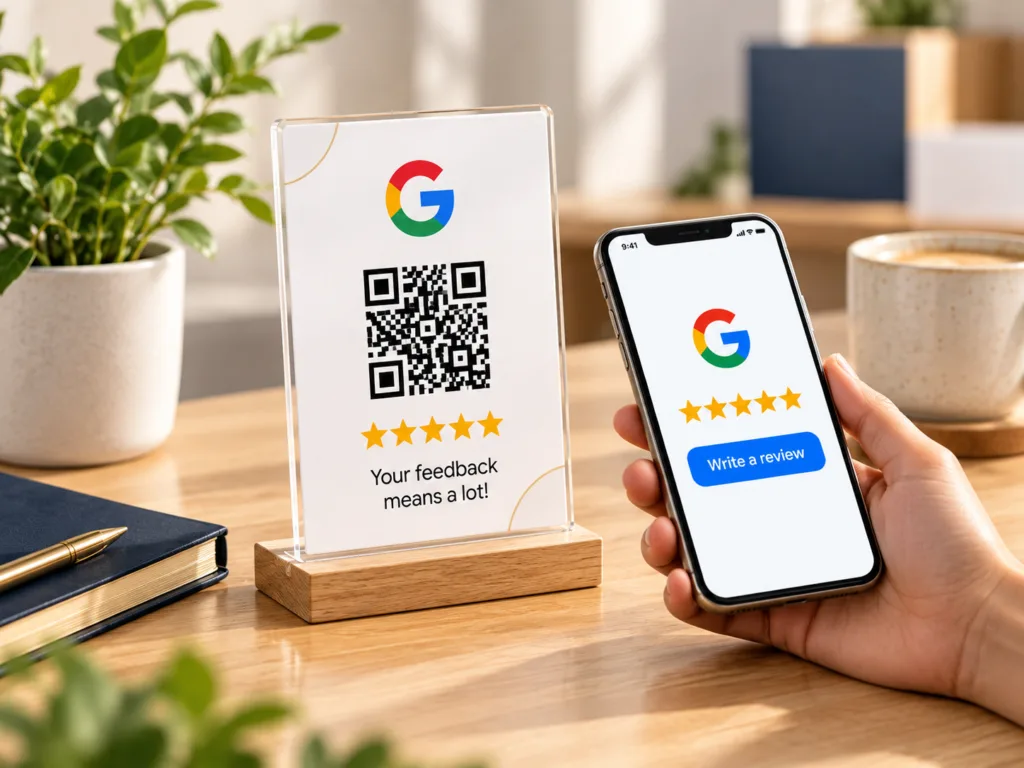
A Google review QR code gives customers a quick route from your counter, parcel or printed material to the review page for your business. The aim is simple: reduce the number of steps without pressuring the customer.
What a Google review QR code does
The QR code stores a link. When a customer scans it with their phone camera, the device opens the linked Google review destination. The code itself does not create, filter or publish a review; the customer still chooses whether to leave feedback and what to write.
How to get your Google review link
- Open your Google Business Profile on a computer.
- Go to your reviews area and choose the option to get more reviews.
- Copy the review link or download the QR code provided by Google.
- Test the link before sending artwork to print.
Google currently provides a direct way for eligible Business Profiles to share a review link or QR code from the profile interface.
Where should you place the QR code?
The best position is usually a natural end point in the customer journey rather than a random location. Useful examples include:
- at a till or reception desk,
- on a small counter sign,
- on a thank-you card inside an order,
- on packaging inserts,
- on service handover paperwork,
- on a business card or leave-behind card.
The wording around the code should be short and neutral, for example “Tell us about your experience” or “Scan to leave a Google review”.
QR code or NFC?
QR and NFC can lead to the same destination, but customers interact with them differently. A QR code is visible and works with a phone camera. NFC lets a compatible phone open the link after a tap.
For a permanent counter display, combining NFC + QR is often the most flexible option: NFC gives a fast tap experience while the printed QR code provides a clear fallback.
Test before you print
Always test the destination using more than one device if possible. Confirm that the correct business profile opens, the link has not been copied incorrectly and the QR code still scans at its final printed size.
If you later change the destination, a standard QR code containing the old direct URL will still point to that original URL. Plan the link structure before ordering a large quantity.
Do not offer incentives for positive Google reviews
Google states that reviews should reflect a genuine experience and that incentives such as free or discounted goods or services in exchange for reviews are not permitted. Keep the request neutral and invite honest feedback rather than asking only happy customers for a five-star rating.
Official guidance: Google Business Profile Help – create a review link or QR code.
What should a professional review sign include?
- Your business name or logo.
- A clear instruction such as “Tap or scan to review”.
- A QR code with enough clear space around it.
- An NFC area if the product supports tap-to-review.
- Strong contrast and readable text.
- No unnecessary clutter around the QR code.
Want a physical tap-and-scan review sign?
DHXart offers business signs that combine NFC and QR so customers can choose the interaction that suits their phone.
Frequently asked questions
Does a customer need an app?
Most modern phones can scan a standard QR code with the built-in camera. NFC support depends on the phone and its settings.
Can I use the same QR code on cards and stickers?
Yes, provided the destination is correct and the final printed code remains large and clear enough to scan reliably.
Should I use QR, NFC or both?
For a fixed counter display, both is often the most practical approach. For packaging or disposable inserts, QR alone is usually simpler and more economical.